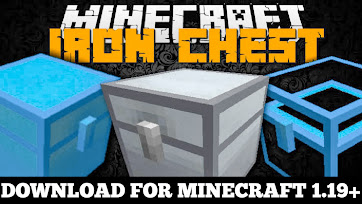

What is Iron Chest for MCPE?
Minecraft worlds are infinite, and so are the resources players collect. The Iron Chest for MCPE (Bedrock Edition) solves the storage problem by introducing new types of chests with increased capacity — from Copper Chests to Diamond and Obsidian Chests.
Each upgraded chest offers more storage slots and better protection. Some even come with special features like explosion resistance or transparent designs to view stored items.
All Chest Types and Capacities
| Chest Type | Storage Slots | Special Feature |
|---|---|---|
| Copper Chest | 45 Slots | Basic upgrade from wooden chest |
| Iron Chest | 54 Slots | Sturdier and more spacious |
| Silver Chest | 72 Slots | Rare and efficient |
| Gold Chest | 81 Slots | Premium look and great storage |
| Diamond Chest | 108 Slots | Transparent and luxurious |
| Obsidian Chest | 108 Slots | Explosion-proof |
| Crystal Chest | 108 Slots | Clear design for easy viewing |
With these upgraded chests, players can organize items easily without filling their base with countless wooden chests.
Why You Need Iron Chest for MCPE
- 🔒 Massive Storage: Store up to 108 item stacks in one chest.
- 💎 Progressive Upgrades: Each chest can be crafted using the previous one.
- 🧱 Explosion Resistant: Obsidian chests protect your loot from creepers and TNT.
- 🌟 Beautiful Designs: Transparent and metallic textures look stunning in your builds.
- ⚙️ Perfect for Survival & Servers: Keep your items safe from other players and griefers.
How to Install Iron Chest for MCPE
Step 1: Download the Files
You’ll need two packs to make the addon work:
Step 2: Import Iron Chest for MCPE into Minecraft PE
- Open Minecraft PE.
- Go to Settings → Storage → Import Packs.
- Select the downloaded
.mcpackfiles. - Enable both Behavior and Resource Packs in your world settings.
Step 3: Start the Game
Once installed, create or open your Minecraft world. You can now craft or find the new Iron Chest for MCPE in your inventory. Enjoy expanded storage and organize your resources like never before!
Alternative Installation (Android APK Method)
If you’re installing through an APK mod version, follow these steps:
- Go to Settings → Security → Unknown Sources, and enable it.
- Download the Iron Chest Mod MCPE APK file from a trusted site.
- Open the downloaded file and install the app.
- Launch Minecraft PE and activate the packs.
You can also use BlueStacks on PC to install and run the mod via APK if you prefer playing on a computer.
Tips for Using Iron Chests Effectively
- Combine with item sorters to keep your resources organized.
- Use Obsidian chests for storing TNT, Gunpowder, or valuable ores.
- Place Diamond or Crystal chests in your base for a premium aesthetic.
Conclusion
The Iron Chest for MCPE is a must-have for every player who loves collecting and organizing items efficiently. With new chest upgrades from Copper to Diamond, your storage problems are over. Whether you’re playing survival or creative mode, these chests bring both beauty and functionality to your Minecraft world.
Metal Chest Extra
Minecraft universes are boundless and boundless is how much blocks and things we really want to store. Be that as it may, chests can contain just 27 piles of thing so our homes turned out to be brimming with chests. To settle this issue on Java Version exists a mod which adds different estimated chests and presently it’s shown up likewise on Bedrock stage!
This addon presents new variations of chest: iron, gold and precious stone. Each is the redesign of the past and can contain more things
This mod changes it up of new chests to the game. All chests have more limit than vanilla chests (up to 108 openings!).
WHAT IS ADDED:
– Copper chest – 45 openings
– Iron chest – 54 openings
– Silver chest – 72 openings
– Brilliant chest – 81 openings
– Jewel chest – 108 openings
– Obsidian chest – 108 openings (impact safe)
– Precious stone chest – 108 openings (straightforward)

You have an extraordinary open door where the Iron Chests 1.19.3-1.17.1 mod offers you to make these straightforward chests and put all that is important in them and not be apprehensive for it.
Taking things and assets on servers is one of the most widely recognized issues in Minecraft. You should conceal it in the most secure spots, if not you might be left without a stockpile of assets. Yet, presently with iron chests everything looks great with robbery.
Step by step instructions to introduce Iron Chests
Ensure that you have the “Java” application introduced.
Download the “Zip” document from our site.
Establishment guidelines
Iron Chests Mod Minecraft PE deals with any Android gadgets (requires Android 4.1 or later). You can likewise introduce and show this application on your PC to utilizing an Android emulator application. This is the way to make it happen:
Step by step instructions to introduce Iron Chests Mod Minecraft PE on Android gadgets
Android gadgets can “sideload” applications. This is the way you can make it happen.
Stage 1: Setting up your gadget Iron Chest for MCPE
From your cell phone or tablet running Android 4.0 or higher, go to Settings, look down to Security, and select Obscure sources. Choosing this choice will permit you to introduce applications beyond the Google Play store. Contingent upon your gadget, you can likewise decide to be cautioned prior to introducing hurtful applications. This can be empowered by choosing the Check applications choice in the Security settings.
On gadgets running a prior variant of Android, go to Settings, open the Applications choice, select Obscure sources, and snap alright on the popup alert.
Stage 2: Downloading Iron Chest for MCPE
The subsequent stage will download Iron Chests Mod Minecraft PE installer document, otherwise called an APK, which is the way Android applications are circulated and introduced.
Stage 3: The interaction Iron Chest for MCPE
You can either download the APK record on your cell phone or on your PC, albeit the last option is somewhat more troublesome. To begin, download an APK document utilizing either Google Chrome or the stock Android program. Then, go to your application cabinet and snap Downloads; here you will find the record you recently downloaded. Open the document and introduce the application.
In the event that you downloaded the APK record on your PC, the cycle is somewhat unique. You should interface your Android gadget to the PC and empower USB mass-capacity mode. The following stage is to move the record onto your gadget. Then, at that point, utilizing a document chief, for example, Astro or ES Record Voyager, you can find the record on your gadget and introduce it.
Instructions to introduce Iron Chests Mod Minecraft PE on your cell phone
Stage 4 : Arrangement Iron Chest for MCPE
Introducing BlueStacks is an exceptionally straightforward interaction. You should simply download the program from the BlueStacks site and run the record. The installer document is very enormous and the motor arrangement might take for some time.
When the underlying establishment process is finished, opening the program doesn’t require in excess of a couple of moments. at the point when it opens, you will be approached to sign in utilizing a Google account like any Android cell phone or tablet.
During the establishment interaction, you might go over blunder messages like “Equipment speed increase isn’t accessible on your framework” or “This host upholds Intel VT-x, however it is impaired.” Empowering equipment speed increase highlights help virtualization applications run smoother and a lot quicker — applications like Bluestacks are essentially running a whole operating system on top of your ongoing framework.
Stage 5: Introducing Iron Chest for MCPE
On the off chance that you haven’t introduced whatever other projects that partner with the APK document type, BlueStacks will naturally open APK records. Double tap the record to send off BlueStacks and introduce the application. You can likewise relocate the APK record onto the BlueStacks home screen. Affirm that you need to introduce the application, and it will show up on your BlueStacks home screen subsequent to introducing.